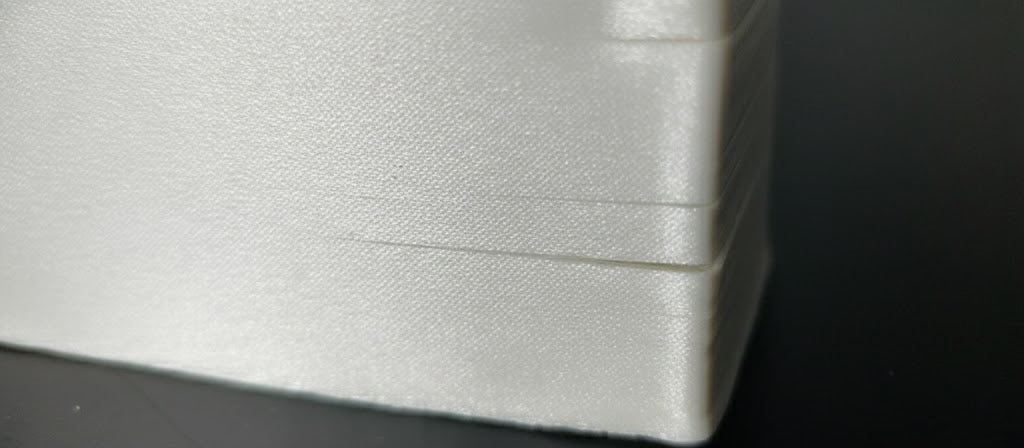

When printing models with very small surface areas on upper layers—such as the tip of a pyramid, a spike, or thin decorative features—you may notice ugly, melted, or curled tops. This is one of the most common issues in 3D printing for beginners and experienced users alike.
The root cause is simple:
The layer does not have enough time to cool before the next hot layer is printed on top of it.
When layers remain too hot, they soften and deform as the nozzle passes over them, leading to a warped, messy appearance.
Fortunately, several proven techniques can solve this problem, although each comes with its own trade-offs. The goal is always one of the following:
-
Increase the cooling time per layer
-
Increase the cooling speed so the material solidifies faster
Below are the recommended solutions and how to use them effectively.
Why Does This Happen?
When printing a very small upper surface, each layer may take only 1–2 seconds to complete. Without time to cool:
-
Layers soften
-
Corners curl upwards
-
The nozzle drags or smears softened material
-
The tip looks melted instead of sharp
For PLA, PETG, ABS and other common filaments, a minimum layer time of 3–5 seconds is usually ideal.
Fix 1: Print Multiple Objects Instead of One
Printing more than one object increases the travel distance of the nozzle. When the printer finishes a layer on Object A, it moves to Object B before returning. This naturally gives each layer more time to cool.
Benefits
✔ No need for the hot nozzle to pause on top of a small area
✔ Great for miniature models or spikes
✔ Reduces smearing and curling
Drawbacks
✘ Wastes material if you only need one model
✘ Takes more print time

Fix 2: Increase Cooling Fan Speed
If you’re printing PLA or other materials that tolerate strong cooling, increasing the part-cooling fan speed helps layers solidify faster.
Benefits
✔ Fastest way to improve cooling
✔ Sharpens small details
✔ Works immediately without modifications
Drawbacks
✘ Not suitable for materials that dislike rapid cooling (e.g., polycarbonate, ABS)
✘ May cause layer adhesion issues if overdone
Fix 3: Increase Minimum Layer Time
Most slicers (Cura, PrusaSlicer, OrcaSlicer, etc.) include a Minimum Layer Time setting under cooling or speed options.
If a layer prints too fast, the slicer will automatically:
-
Slow down the nozzle
or -
Insert a short pause
This ensures every layer gets the minimum cooling time before the next one is printed.
Benefits
✔ Very precise
✔ Easy to configure
✔ Works for most materials
Drawbacks
✘ Pausing the nozzle may cause oozing
✘ Printing too slowly over a tiny area can still overheat it